


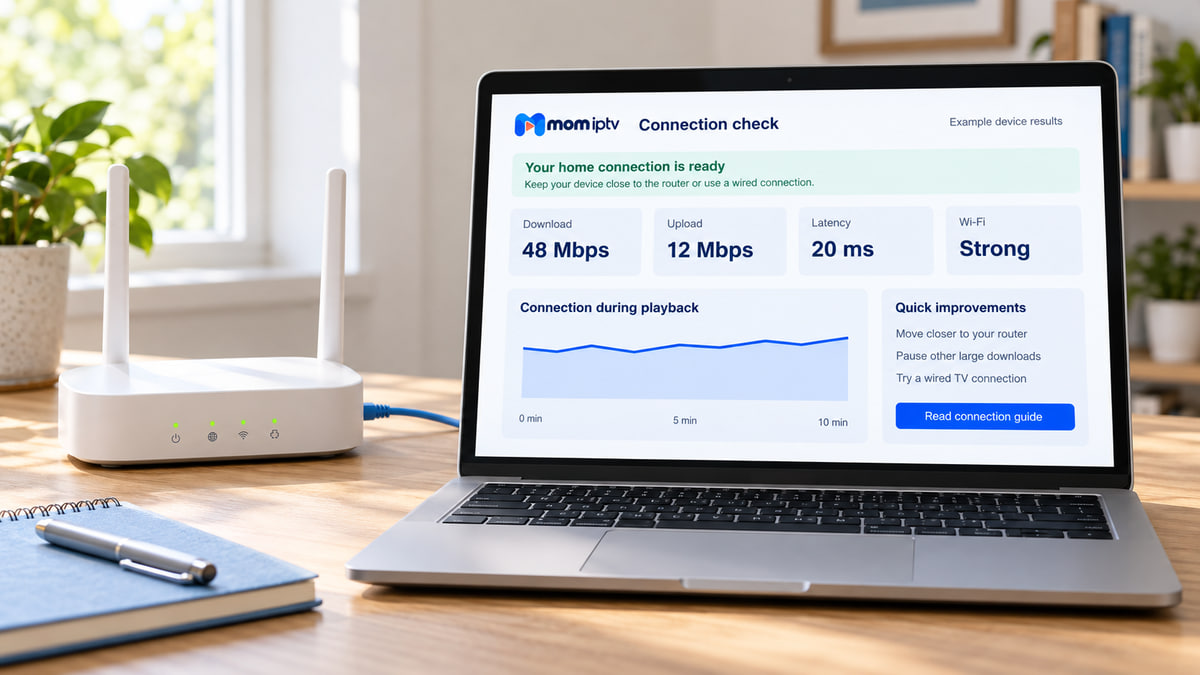
If the picture pauses, the quality drops mid-scene or a live match freezes just after kick-off, you are dealing with buffering. It is one of the most common problems with any streaming service, licensed IPTV included. In most homes the cause is the Wi-Fi, the router, the device, or a busy period on the line, rather than the service itself.
This guide is a practical, step-by-step way to find the cause and improve the picture. It is written for UK and other English-speaking viewers watching abroad, including people in holiday homes where the router sits in a cupboard and the signal has to travel through thick walls. It will not promise a stream that never pauses. It will walk you through the checks that usually make the biggest difference, and tell you when to contact support.
Buffering happens when the player has not received the next piece of video in time, so it pauses or drops to a softer picture. Live TV is less forgiving than a film, because the player cannot download several minutes ahead. Stability matters as much as the headline number.
1. Check your internet speed, on the right device, at the right time
Run the test at the time of day when the picture usually fails, and as close as you can to the television. On a phone, tablet or computer, Netflix recommends Fast.com. If you can, run the same test once next to the router and once next to the TV, on the same Wi-Fi. A big drop between those two results usually points to the wireless signal, not the broadband line coming into the house.
There is no single official speed standard for IPTV, but figures from major streaming services are a useful guide. Netflix recommends a stable connection of 3 Mbps for 720p HD, 5 Mbps for 1080p Full HD and 15 Mbps for 4K, per stream. Amazon’s help pages for Prime Video give a similar HD figure: a minimum of 5 Mbps for HD, and 1 Mbps for standard definition. A mom iptv plan streams on one screen at a time, so you only need the speed for that one stream, plus anything else your household is doing online.
If the test next to the router is already well below those guides, speak to your internet provider. If it is fine beside the router but weak beside the TV, the Wi-Fi and router steps below matter most. If both tests look healthy and the picture still pauses, look at the device, the player settings, peak times, or support.
2. Try a wired connection before you blame the Wi-Fi
Wi-Fi is often the weak point in older villas and apartments with thick walls or a router two rooms away. A wired Ethernet cable from the router to the TV or streaming device is the most stable option you can give a live picture.
If you use a Fire TV Stick, you can add a USB Ethernet adapter and plug the stick into the router, or into a nearby network point. Our Fire TV Stick guide covers setup, and the compatible devices page lists the other screens that work. Many Samsung, LG and Android smart TVs have an Ethernet port on the back. If the TV is close enough to the router, use it.
Where a cable will not reach:
- Connect the device to the 5 GHz network if your router offers both 5 GHz and 2.4 GHz, and the device is nearby. 5 GHz is usually faster over a short distance; 2.4 GHz travels further through walls, but it is often more crowded.
- Avoid cheap plug-in “extenders” that create a second weak network, if you can. A powerline kit or a proper mesh system is usually more reliable in a large holiday home.
- Pause game downloads, cloud backups, video calls and other 4K streams during a live event.
3. Move the router, and restart the home network
Netflix’s advice is straightforward: move the router and the device closer to each other, keep the router off the floor in an open space, and move it away from other wireless devices and appliances. A router in a metal cabinet, behind a television or under a sofa will give a weaker signal than the same router on a shelf in the room where you watch. Even in a holiday home, getting it out of a cupboard and higher up is often worth doing.
Then restart the network properly, not just the television:
- Turn off or unplug the TV or streaming device.
- Unplug the modem and the router (if they are separate boxes) from the power for 30 seconds.
- Plug the modem in first and wait until its lights settle. Then plug the router in and wait again.
- Turn the TV or streaming device back on and try the picture again.
This is the sequence Netflix recommends for buffering.
4. Restart the device and clear the player’s cache
A full restart is not the same as pressing Home or turning the TV to standby. Unplug the streaming device from the power, wait a minute, plug it back in and start it again. If your Fire TV Stick came with a wall adapter, use that rather than the television’s USB port, if you can. Some TVs do not supply enough power, which can cause the stick to behave oddly.
Next, clear the player app’s cache. This removes temporary files without deleting the app. On a Fire TV Stick, Amazon’s steps are: go to Settings, then Applications, then Manage Installed Applications, select the player app you use for IPTV, and choose Clear Cache. Try that first. Clear Data is a stronger reset: it can sign you out and remove the app’s settings, so you will need your login details again.
On a smart TV, look in the TV’s settings for Apps or Application manager, then the player, then clear cache. After that, check for a software update for both the TV and the app. If the app still misbehaves, uninstall it and install it again, following our installation guide.
5. Check the player settings, in plain terms
You do not need a particular player app for these steps. The menus have different names, but the ideas are the same.
If the player lets you choose a picture quality, a bitrate or a stream type, try a lower setting for live TV, especially during a big event. Auto or 4K looks sharper when the connection is stable, but it is also the first to pause when the speed dips. HD is usually the better choice for a match you do not want to miss. Close other apps in the background, and avoid screen mirroring or AirPlay at the same time if the picture is already struggling.
If the sound and picture drift apart, that is not always buffering. Check the TV or soundbar’s lip-sync setting, and try switching the audio from Dolby or bitstream to PCM.
6. Allow for peak times
Buffering that appears only in the evening, or only during a well-watched fixture, is often a capacity issue rather than a broken setting. Lots of households go online after work, and live sport can add a short, sharp load on top of that. In the UK, Ofcom has noted that traffic peaks are generally driven by live streaming of sports fixtures and by gaming downloads, and that congestion is more likely during those events.
A holiday-home network shared with other apartments, or a rural wireless link, can feel this more than a dedicated fibre line. Use Ethernet if you can, drop from 4K to HD for the event, and pause other downloads. A short pause can still happen when a lot of people watch at once.
7. VPNs and ISP traffic management, explained plainly
Some internet providers manage traffic on their networks at busy times, to stop the whole network slowing down. In the UK, Ofcom’s net neutrality guidance says providers may use traffic management measures to avoid congestion over their networks at peak times. Its 2025 monitoring report also found that congestion on fixed broadband networks remains rare, though a small number of providers used targeted, temporary measures during particularly busy peaks.
A VPN sends your traffic through another server and encrypts it, which can make it harder for a provider to tell that you are watching video. Some people switch one on if they think video is being slowed down. A VPN can also add delay and reduce speed, and in many homes it makes buffering worse, not better.
For a licensed IPTV service, a VPN is not required to watch. Try the picture with it off and with it on, and keep the setup that is more stable. A VPN is also the wrong tool for getting around the geo-limits on official UK catch-up apps. Netflix notes that if your internet provider limits your speed, you can try a lower video quality setting.
8. When to contact support
Many buffering problems are fixed by a better connection to the router, a restart, or a lower picture quality. If you have done that and the picture still fails, contact our support team. Get in touch when the pauses continue after a wired connection or a closer router, a full restart and a cache clear; when the problem appeared suddenly after the service had been stable; or when only some channels or only live events are affected and you can describe the pattern.
Include four details so we do not have to ask twice: the device you are using, whether it is on Wi-Fi or Ethernet, a recent speed-test result (and whether you ran it next to the TV), and when the buffering happens. If the speed test is low even beside the router, your internet provider is the first call.
Frequently asked questions
How fast does my internet need to be?
There is no single IPTV standard. As a guide, Netflix recommends 5 Mbps per stream for Full HD and 15 Mbps for 4K, and Amazon recommends 5 Mbps for HD on Prime Video.
Is a wired connection better than Wi-Fi?
Yes, for a live picture. An Ethernet cable avoids most of the drop-outs that thick walls and distance cause. If a cable will not reach, move the router closer and try the 5 GHz network over a short range.
Should I use a VPN to fix buffering?
Not as a first step. A VPN can hide the type of traffic from your internet provider, but it can also slow the connection. A licensed IPTV service does not need a VPN, and a VPN will not repair weak Wi-Fi.
Why is buffering worse during a live match?
The player cannot buffer far ahead, and a popular fixture can coincide with a busy period on the wider network. Ofcom has observed that traffic peaks are often driven by live sport. Dropping to HD and using Ethernet reduce the risk; they cannot guarantee a pause will never happen.
When should I contact support rather than my internet provider?
If a speed test next to the router is already slow, start with your internet provider. If the line looks fine and you have already tried Ethernet, a restart and a cache clear, message support with the device, connection type, speed result and timing.
Ready for a more stable setup?
If you have worked through these steps and you want English-language TV on a device you already own, with a licensed service and people you can actually message, take a look at our plans. All prices are in US dollars: $17.50 for one month, $41 for three months, $53 for six months and $75 for twelve months.
Not sure yet? You can get a 4-hour free trial on your own TV first: Get a 4-hour test.

Written by Erik
Part of the mom iptv team that answers customer questions every day and turns the common ones into guides.
More guides by this authorUsing mom iptv? Compare the mom iptv plans or follow the installation guide for your device.
Comments