

Smart TV setup
IPTV on your Smart TV: Samsung, LG and Android TV
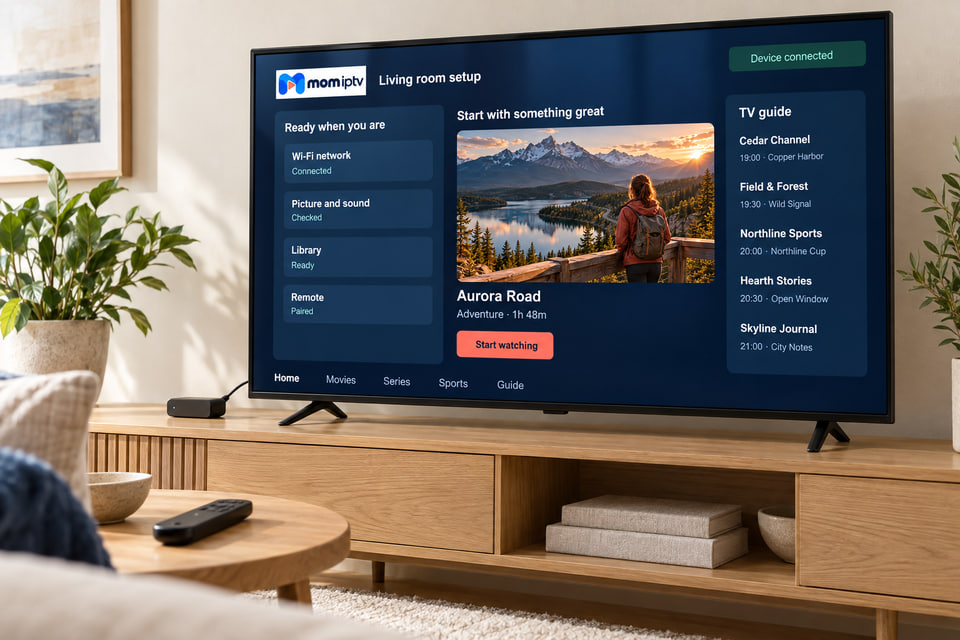
Most TVs made since about 2017 can run mom iptv through a player app — no extra box, one remote. Find your brand below for the exact steps, then tune two or three picture settings for a better result.
Step by step
Choose your TV brand
Not sure what your TV runs? The brand name on the home screen or the start-up logo usually tells you.
Samsung (Tizen)
- Press Home and open Apps.
- Search for the player in your activation message and select Install.
- Open it. If it shows a MAC address or device key, send us a photo; otherwise enter your login.
- Restart the app so the guide loads cleanly.
LG (webOS)
- Press Home and open the LG Content Store (called Apps on newer sets).
- Search for the recommended player and install it.
- Enter your login, or send us the device code the app displays.
- If the store does not list the app, ask us for an alternative for your webOS version.
Android TV and Google TV (Sony, Philips, TCL and others)
- Open Google Play from the home screen.
- Install the recommended player.
- Choose the login option and paste your server, username and password.
- These TVs have the widest app choice — if one player does not suit you, we can suggest another.
Other brands (Hisense VIDAA, Panasonic, older sets)
- Check the TV’s app store for the player we recommend.
- Many of these platforms have few IPTV players. If yours is missing, a streaming stick is usually the quickest fix.
- Send us the model number before you order and we will tell you the best route.
Device-code apps
Why some TV apps show a code instead of a login box
Typing long addresses with a TV remote is painful, so several Smart TV players link your subscription to the TV itself. It sounds technical; in practice it is quicker.
About app feesSome of these players charge their own small activation fee after a trial period. That goes to the app developer, not to mom iptv — we always tell you in advance.
-
Open the app on your TV
It shows a MAC address or device key, usually six pairs of characters.
-
Send us a photo of it
On WhatsApp, together with your order or activation message.
-
Restart the app
Your channels, guide and library appear — no typing needed.
Better picture
Three settings worth changing tonight
| Setting | Where to find it | What we suggest |
|---|---|---|
| Motion smoothing | Auto Motion Plus (Samsung), TruMotion (LG), Motionflow (Sony) | Off for films; low for sport if you like it |
| Picture mode | Picture → Picture Mode | Movie or Filmmaker in the evening, not Vivid |
| Network | Settings → Network | Cable, or the 5 GHz Wi-Fi band |
Older or budget TV?If menus lag or apps will not install, the TV’s processor may simply be too slow for current apps. A streaming stick in the HDMI port is the cheapest upgrade — see our Fire TV Stick guide.
Smart TV questions
Why does the app show a MAC address or device key?
Some Smart TV players do not let you type a login on the TV. Instead they show a device code; you send it to us and we link your subscription to it, or you add your playlist on the app’s website.
Some player apps ask for a one-off fee. Is that you?
No. Several Smart TV players charge their own small activation fee after a free period. That payment goes to the app developer, not to mom iptv — we will tell you if the app we recommend for your TV does this.
The picture looks too smooth or “soap opera” like.
Turn off motion smoothing — it is called Auto Motion Plus on Samsung and TruMotion on LG. Films will look the way they were shot.
No question matches that search. Ask on WhatsApp and we will answer you directly.
Useful pages
IPTV Fire Stick
The easiest upgrade for an older TV.
IPTV Android
Android TV boxes and Google TV devices.
Installation Guide
Setup steps for every device on one page.