

Installation guide
How to install mom iptv on any screen
Every setup follows the same pattern: install a player app, enter the login from your activation message, let the guide load. Jump to your device below — each section takes about ten minutes to follow.
Before you start
Five minutes of preparation saves most setup problems:
- Keep your activation message open on your phone — you will copy details from it.
- Connect the TV device by cable, or to 5 GHz Wi-Fi, and check it has the latest software update.
- Know your device model; if the app we recommend is missing, we will suggest another.
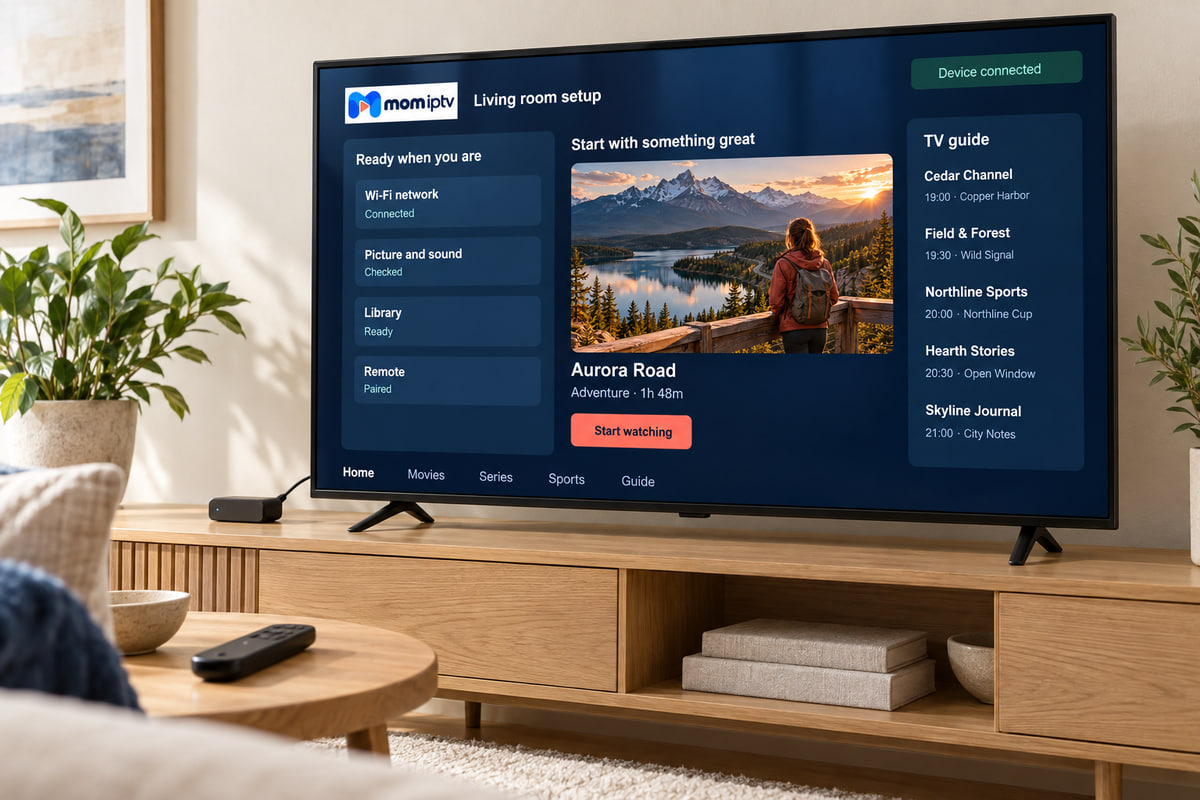
Smart TV (Samsung, LG, Android TV, Google TV)
-
Open the TV’s app store
Samsung: Apps. LG: LG Content Store. Android/Google TV: Google Play.
-
Install the player we recommend
The app name is in your activation message. Some Smart TV players charge their own fee after a trial period — we tell you if ours does.
-
Log in, or send us your device code
If the app asks for a server, username and password, paste them in. If it shows a MAC address or device key instead, send us a photo and we link your plan to it.
-
Restart the app and load the guide
The first channel list and EPG download can take a few minutes.
Amazon Fire TV Stick
-
Search the Amazon Appstore first
If the player we recommend is listed, install it and skip to step 4.
-
Otherwise, install “Downloader”
From the Appstore. It lets you install an app from a web address we send you.
-
Allow Downloader to install apps
Settings → My Fire TV → Developer options → Install unknown apps → Downloader: On. If Developer options is missing, open My Fire TV → About and press select on your device name seven times.
-
Open the player and log in
Enter the details from your activation message and wait for the guide to load.
Android TV boxes and Google TV
-
Open Google Play
Sign in with your Google account if asked.
-
Install the recommended player
Search for the name in your activation message.
-
Choose the login option
Pick “Login with Xtream / API” where offered and paste your server, username and password.
-
Use a cable if you can
Most boxes have a network port — it makes live sport noticeably smoother.
Apple TV
-
Open the App Store on Apple TV
Use the same Apple ID as your iPhone so typing is easier.
-
Install the recommended player
Some tvOS players are paid; we tell you which one we suggest and why.
-
Enter your login
Use the remote, or type on your iPhone when the keyboard prompt appears on it.
-
Turn on Match Frame Rate
Settings → Video and Audio → Match Content. Sport and films play more smoothly.
iPhone, iPad and Android phones
-
Install the player from your store
App Store on iPhone/iPad, Google Play on Android.
-
Paste your login
Copy straight from our WhatsApp message — no typing mistakes.
-
Save mobile data
Lower the stream quality in app settings when you are away from Wi-Fi. HD can use 1–3 GB an hour.
Windows PCs and Macs
-
Install the desktop player we recommend
For a quick check, the free VLC media player can also open your playlist link.
-
Add your login or playlist
Paste the details from your activation message.
-
Connect to the TV if you like
An HDMI cable from laptop to TV works, but a TV device gives a better remote-control experience.
If something goes wrong
| Problem | First thing to try |
|---|---|
| Login rejected | Paste the details again; check http:// and the port number. |
| Guide empty | Refresh the EPG in settings and wait a few minutes. |
| Buffering | Restart router and device; try a cable or 5 GHz Wi-Fi. |
| Black screen, sound works | Switch the app’s video player or decoder setting. |
| App will not install | Ask us for an alternative app for your model. |
More fixes are on our customer support page.
Prefer to be talked through it?
Message us with your device and we will guide you one step at a time, with screenshots.